
💬 Using Pixacare messaging
📨 Who can I message?
You can write to any Pixacare user, including:
👩⚕️ Colleagues within your facility
🏥 External professionals (from another hospital, private practice, etc.). 🩺 A home nurse as part of a remote patient monitoring program
🤷 Why use Pixacare messaging?
✅ Secure and HDS-compliant (Health Data Hosting)
✅ Save time by sharing complete assessments (photos, questionnaire responses, keywords...)
✅ Replaces unsecured SMS or WhatsApp exchanges
✅ Accessible from the mobile or web app
✉️ Sending a message to a user
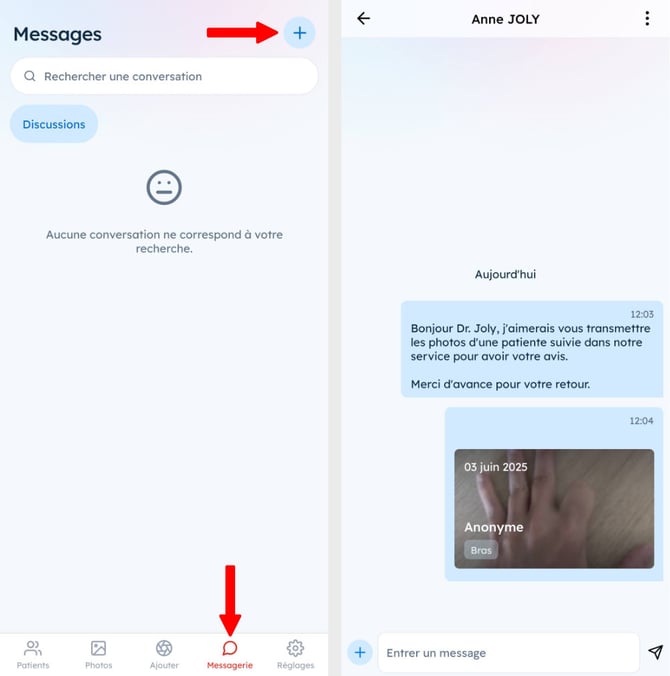
- Open the "Messaging" tab
- Click the ⊕ button
- Select or search for a user (by name)
- Write your message
- Attach a photo, assessment, or document if needed
👥 Creating a group conversation
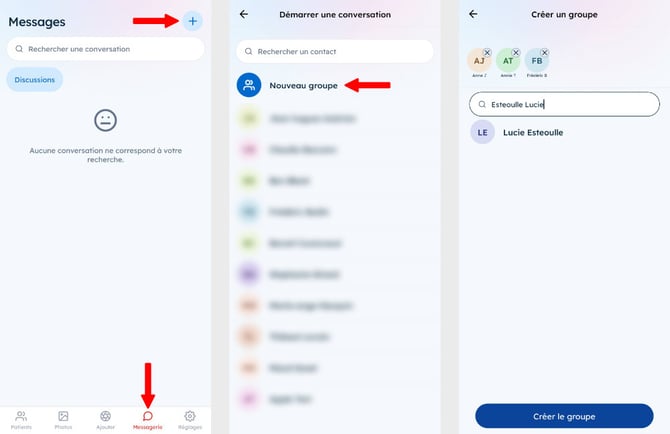
🎯 Use this to communicate with multiple users at once (e.g., department meeting, project team, multidisciplinary team review…)
- Add multiple recipients
- Name the group (optional)
- All members can view and reply to messages
🧪 Remote monitoring conversation vs standard group
|
💬 Group conversation |
👁️🗨️ Remote monitoring conversation |
|---|---|
|
Manually |
Automatically |
|
All users |
Hospital team + home nurse |
|
General use |
Centered on a patient monitored at home |
|
No linked data |
Direct link to patient profile and remote monitoring |
🔔 Configuring or disabling notifications
📱 On mobile :
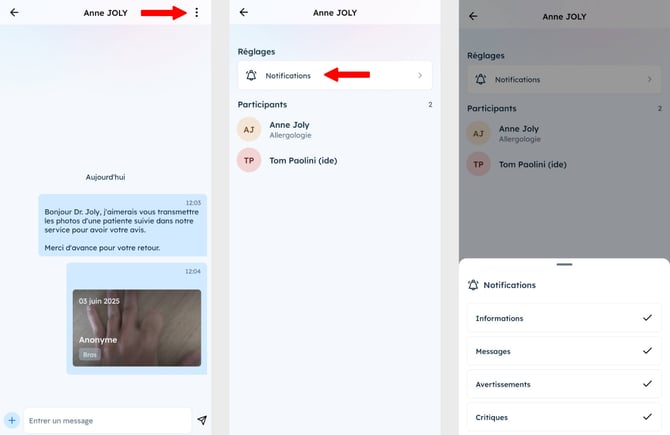
- In the "Messaging" tab, select the conversation for which you want to change notifications
- Tap the three dots in the top right corner
- Tap "Notifications"
- Choose the type of notifications you want to receive, or turn off all notifications
🖥️ On the web app:
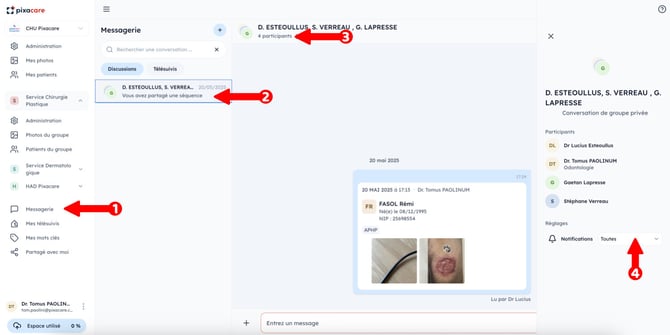
- Go to the "Messaging" tab
- Select the conversation for which you want to change alerts
- Click on the number of participants
- Select the type of notifications you want to receive
🛟 Need help?
Contact our team via the support form