
🧠 What is an "assessment" in Pixacare?
An assessment is a set of medical photos taken for the same patient at a given point in time. It is:
- Linked to the patient's identity
- Organized by department / group
- Sorted by date taken
📡 How does sync work?
Assessments are automatically synced to the Pixacare HDS cloud as soon as a network is available (Wi-Fi or 4G).
⚙️ Technical details:
- 📲 Photo taken → 💾 Temporary local storage → ☁️ Secure upload as soon as possible (even when the app is not open but running in the background)
- 🔐 Encrypted transfer
- ✅ Sync confirmed once data is saved on Pixacare's servers
🕙 When is an assessment considered synced?
An assessment is fully synced when:
- It appears in the Pixacare web interface
- It is visible to other team members
⏳ What to do if an assessment won't sync?
An assessment may sometimes fail to sync with the online server. In that case, tap the icon in the top right corner and retry the sync by tapping "Synchronize all."
%2010.28.59.png?width=292&height=632&name=Captura%20de%20pantalla%202026-06-26%20a%20la(s)%2010.28.59.png)
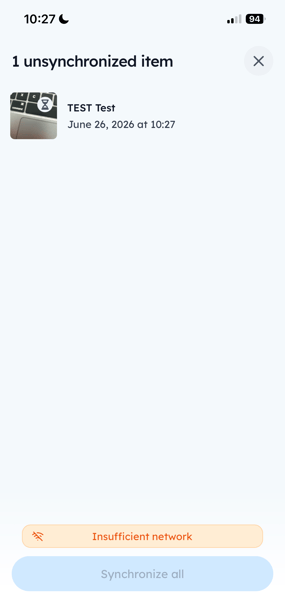
Things to check:
- 🔌 Make sure the device is connected to Wi-Fi or 4G (try switching networks if needed)
- 🌀 Force-quit and restart the app if nothing happens after one minute
- 📲 Check if an app update is available in the store
- 🛑 Do not delete the app
🧬 Integration with the EHR / PMS (via Lifen)
If your facility is connected to Pixacare via LIFEN, sync also enables:
- Sending photos directly to the Electronic Health Record (EHR) as a PDF report
- Automatic matching to the correct patient via their medical record number (MRN)
👥 What if multiple users take photos of the same patient? s
No worries, Pixacare handles multi-user assessments:
- 📅 Assessments organized by date
- 👤 Author name displayed for each photo
- 🔄 Real-time access for the entire team
✅ Best practices for seamless sync
- Leave the app open for a few seconds after taking a photo
- Use a secure Wi-Fi connection for faster sync
- If you are using your facility's Wi-Fi, check with your IT department to make sure no requests are being blocked by the facility's firewall