⚠️ Prerequisites
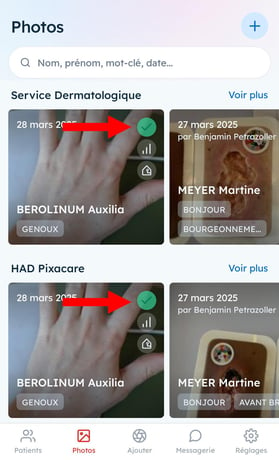
- You must be a group or facility administrator to access this feature
📌 Step 1: Access user management
- Log in to your Pixacare account via the web app.
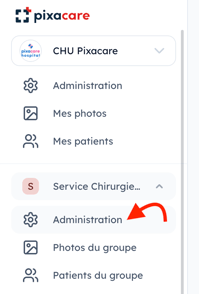
- Click on the name of the group you want to add the user to, in order to expand the submenu.
- Select the "Administration" submenu.
➕ Step 2: Add a new user
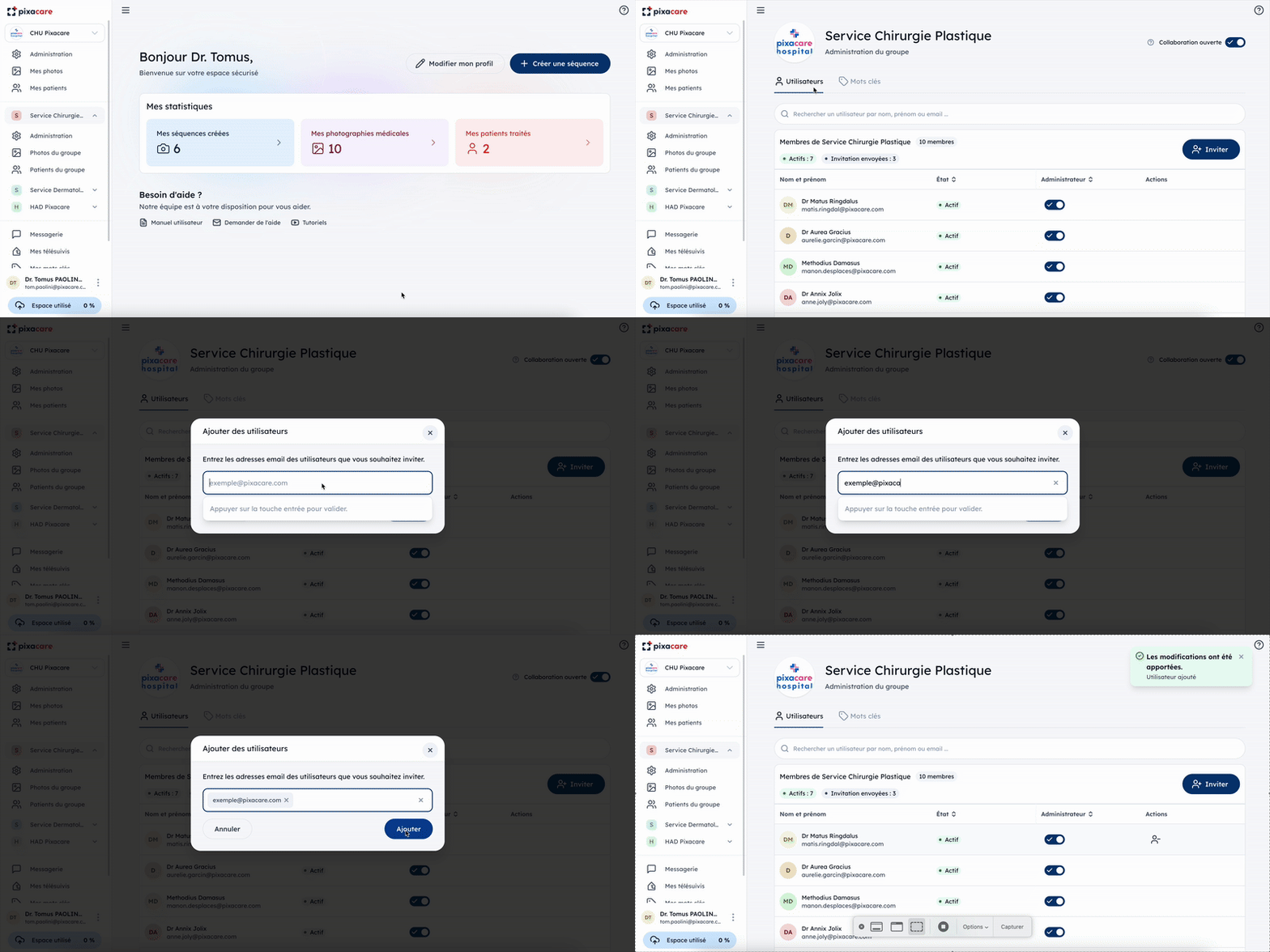
- Click "Add a user."
- Fill in the required information:
- 📩 Email address
- Press "Enter" to confirm the entry and click "Send."
🔄 Step 3: Manage permissions
Once added, you can:
✅ Edit roles: An administrator can adjust access rights as needed.
🚫 Remove a user: If someone leaves, their access can be revoked without deleting the data they have added.
📢 Best practices
✔️ Only add users with a professional email address.
✔️ Define roles precisely to ensure data security.
✔️ Let the user know they must accept the invitation to complete their registration.
How to deactivate / remove a user from your group / department.
⚠️ Prerequisites
- You must be a group or facility administrator to access this feature
📌 Step 1: Access user management
- Log in to your Pixacare account via the web app.
- Click on the name of the group you want to manage to expand the submenu.
- Select the "Administration" submenu.
➕ Step 2: Remove the user
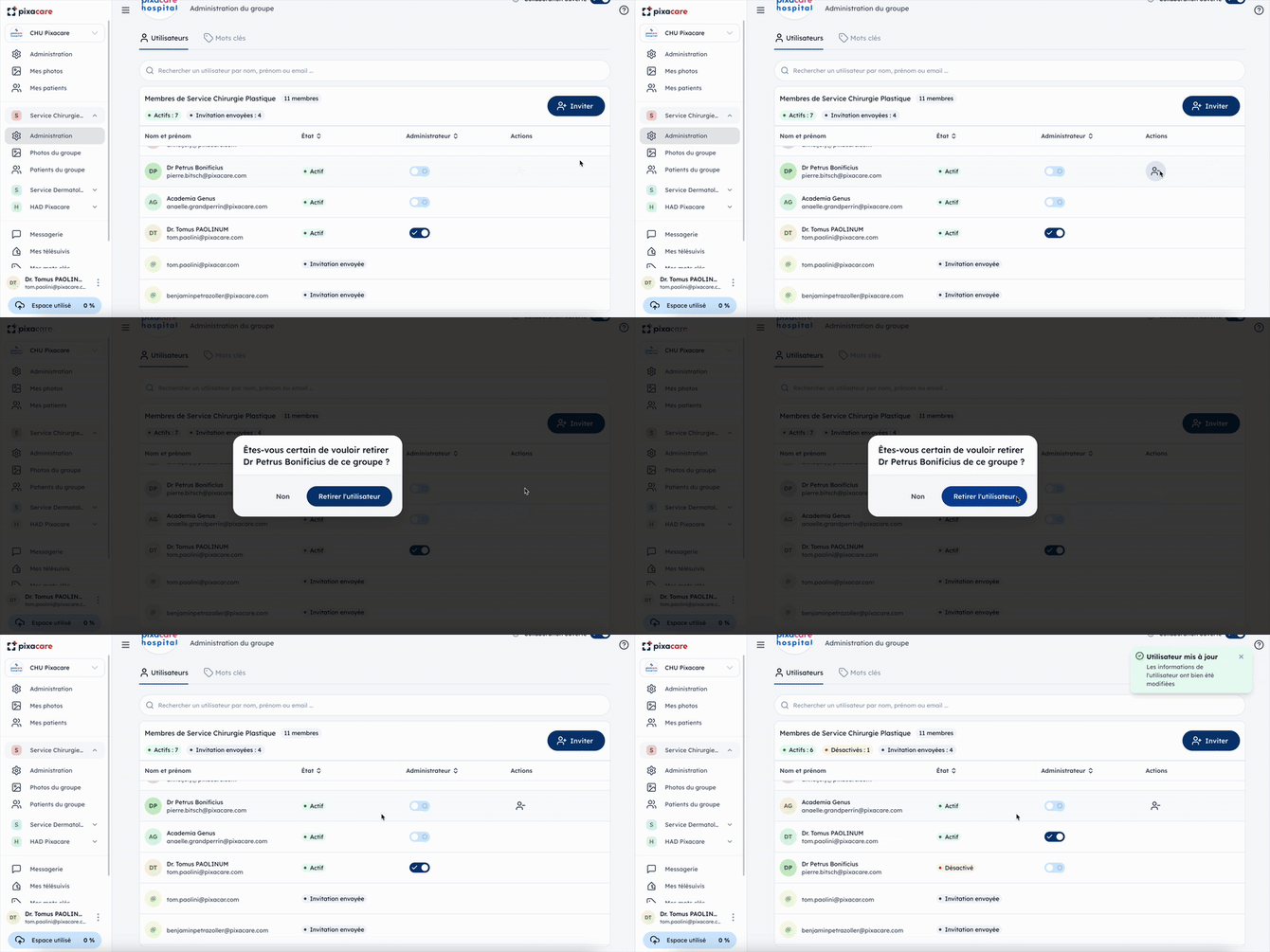
- In the "Action" column, click "Remove a user."
- Confirm by clicking the "Remove user" button.
The user will be deactivated and will no longer have access to the app, but all data they have added will be retained.
📢 Best practices
✔️ Let the user know they should make sure all their assessments have been properly synced before their account is deactivated. To do so, simply open the app while connected to the internet, then go to the "Photos" tab to check that none are pending.