
✅ Prerequisites before getting started
📱 The Pixacare mobile app (iOS or Android)
 A Pixacare calibration sticker (placed near the wound)
🧭 Steps to create and measure a wound area
🖼️ 1. Take the photo
-
Open the Pixacare app.
-
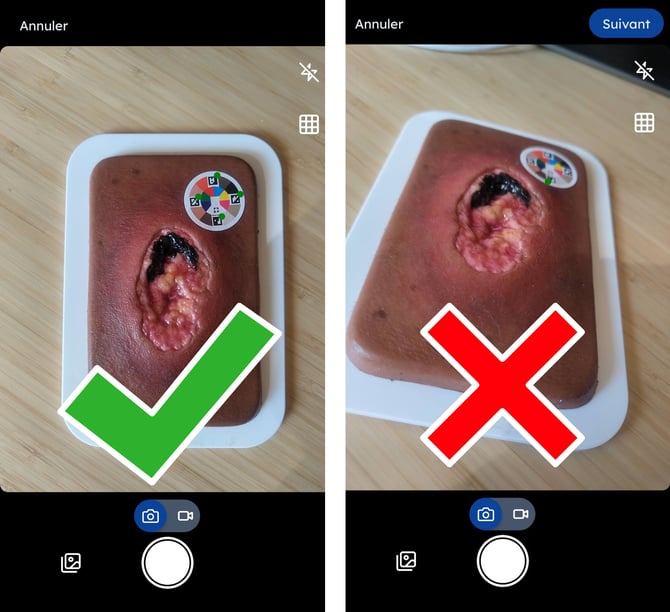
Take a clear photo of the wound with the calibration sticker visible, parallel to and at the same level as the wound.
📋 2. Associate a questionnaire
Depending on your situation, there are 3 possible cases:
-
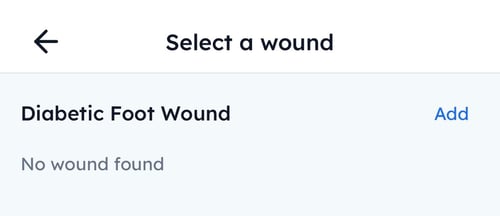
No existing questionnaire?
-
Add a new one.
-
⚠️ If the patient has multiple wounds, create one questionnaire per wound.
-
You will then need to create a separate assessment for each wound.
-
-
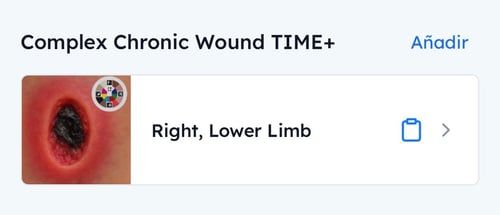
A questionnaire already exists?
-
Select it directly, then proceed to the measurement step.
-
-
Unable to add a questionnaire?
-
Contact us via this support form and we'll enable it for you.
-
📐 3. Calculate wound dimensions
In the "Dimensions" section of the questionnaire, two options:
✍️ Option 1: Automatic measurement (recommended)
-
Click "AI powered analysis"
- The surface area (cm²), maximum length, and maximum width are calculated automatically.
⚠️ Requires a valid calibration sticker
✏️ Option 2: Manual entry
- Enter the estimated length and width.
- The surface area is calculated using the ellipse formula: Length x Width x 0.785
📝 4. Fill in the remaining questions
- Answer the additional fields or skip them if not needed.
📊 Where to find measurements & analyses?
You can view the recorded data at any time:
- 🔍 From the patient profile, in the Wounds tab, then select the relevant wound.
- 📸 From an assessment containing a questionnaire, click on the wound displayed.
🚧 Please note:
The Dashboard view with progress charts is not yet available on mobile.
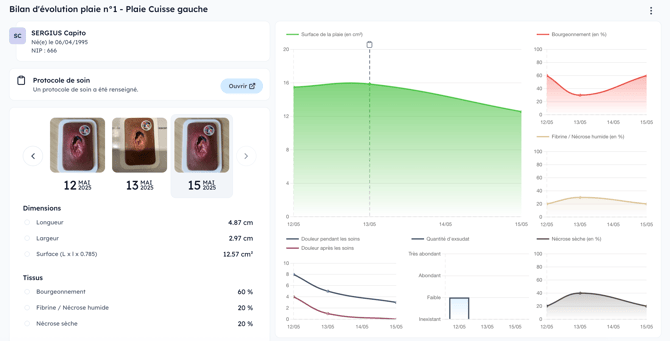
👉 Log in to the web app to access it.